

Before you start, place the NextGen role as high as you can in Server Settings → Roles. The bot can only create and change roles below its own.
Two ways to use it
The first screen offers both.Automatic setup
It is the first screen of the assistant. The gears turn while the bot works, and the list shows each step as it is applied.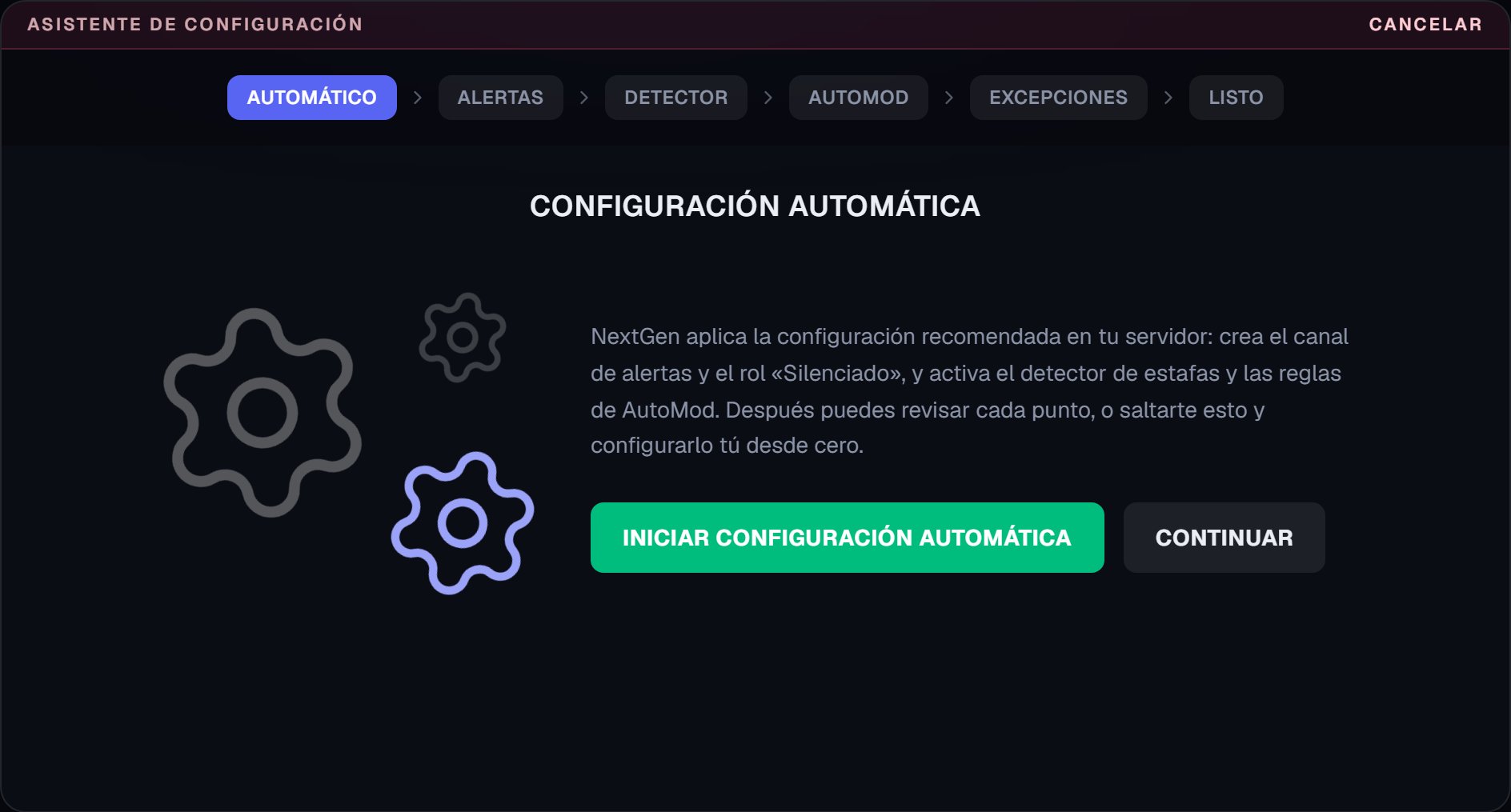
First screen, before starting. The bar at the top shows the steps of the assistant.
- Creates the alerts channel.
- Creates the
@silenciadorole and applies it to your channels. - Turns on the scam detector.
- Turns on AutoMod for invites to other servers, spam and malicious content.
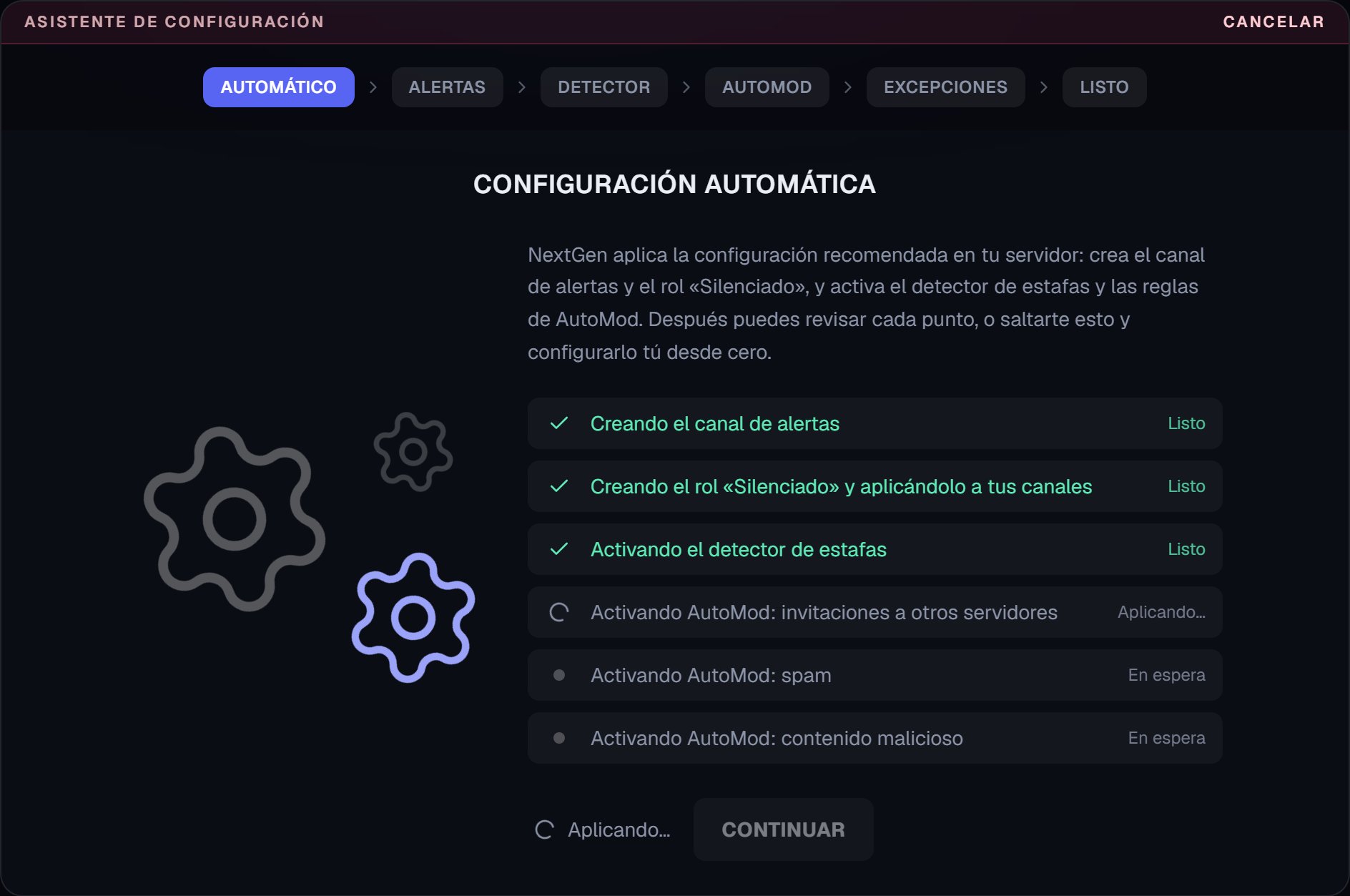
The bot has created the alerts channel and the role, and turned on the detector. It is now applying AutoMod.
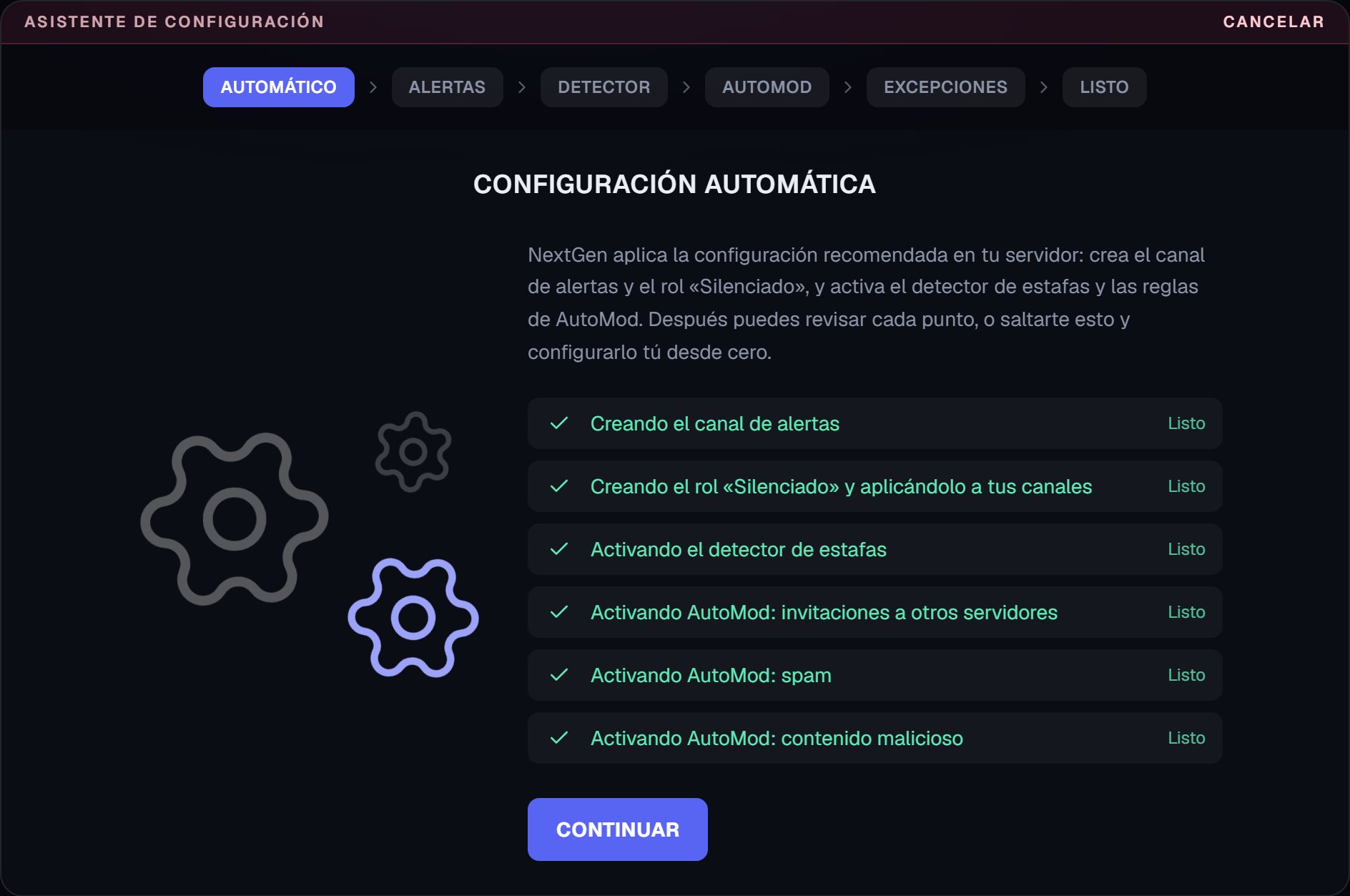
When it finishes, the Continue button is highlighted.
What the automatic setup leaves
Everything the assistant sets up can be edited later from its module, in AutoMod or in Scam detector.
If a step fails
The row is marked Falló (Failed) or Con avisos (With warnings) and the cause appears below it. The most common ones are:The Intentar de nuevo lo que falló (Try again what failed) button doesn’t touch the settings that were already applied successfully, as its own name says.
After the automatic setup
If every step went well, Continuar opens a short walkthrough. It doesn’t ask you to reconfigure what the bot already did, only the times and what the automatic setup doesn’t touch.
Times
You choose how long the mute lasts for spam and for malicious content: 5 minutes, 10 minutes, 1 hour or 1 day. On the right, the preview shows the message with the duration you chose.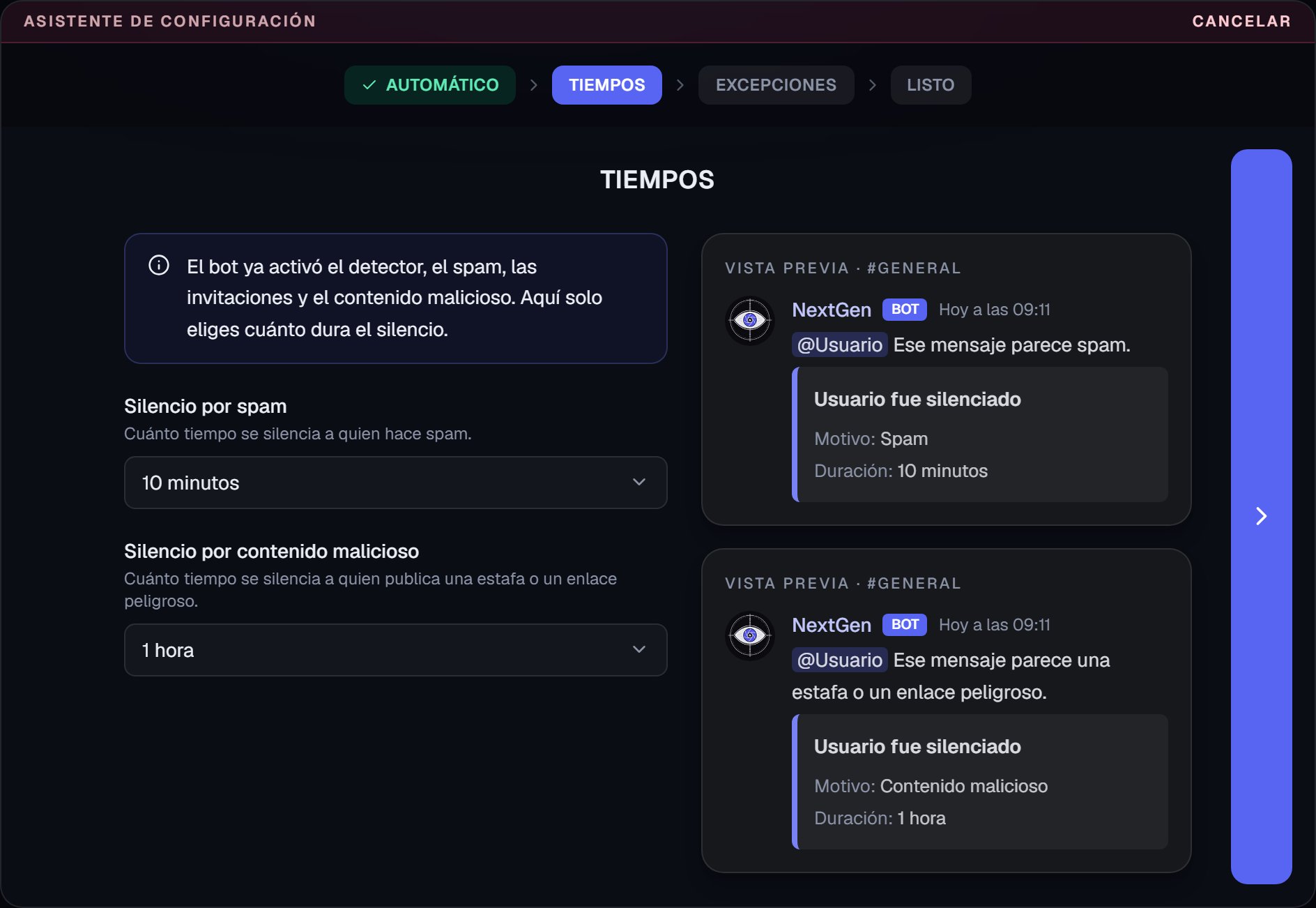
The mute times, with the message preview.
Exceptions
Here you say what the rules don’t check.- Team roles. Moderators and administrators. Their messages aren’t checked by any rule.
- Advertising or partner channels. Invites, links and repeated messages are allowed there. Channel exceptions don’t apply to malicious content.
You can pick up to 25 roles and 25 channels. This screen is optional.
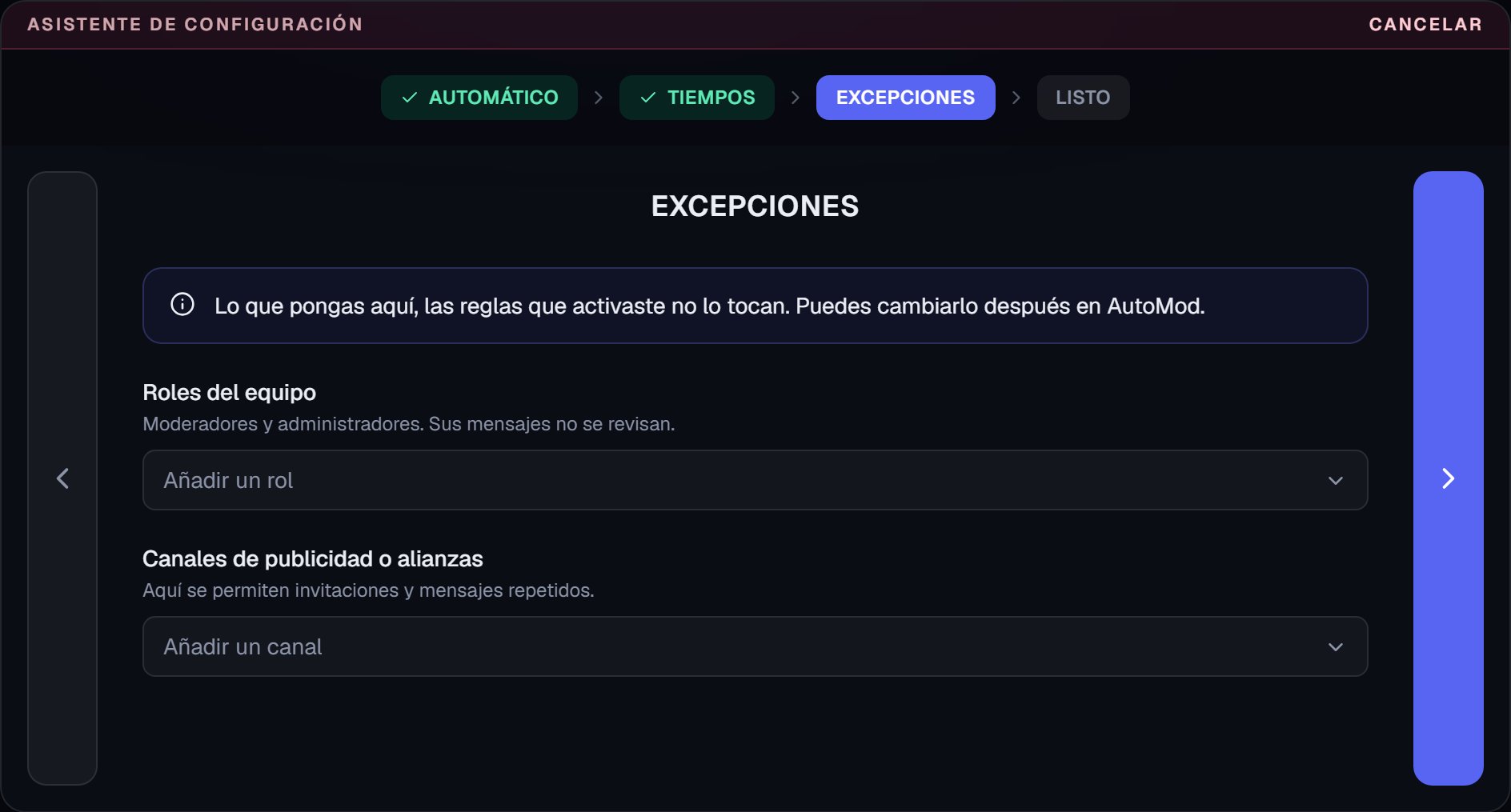
Exceptions. They can be left empty.
Done
The last screen summarizes what is now working. From there you go back to the dashboard home.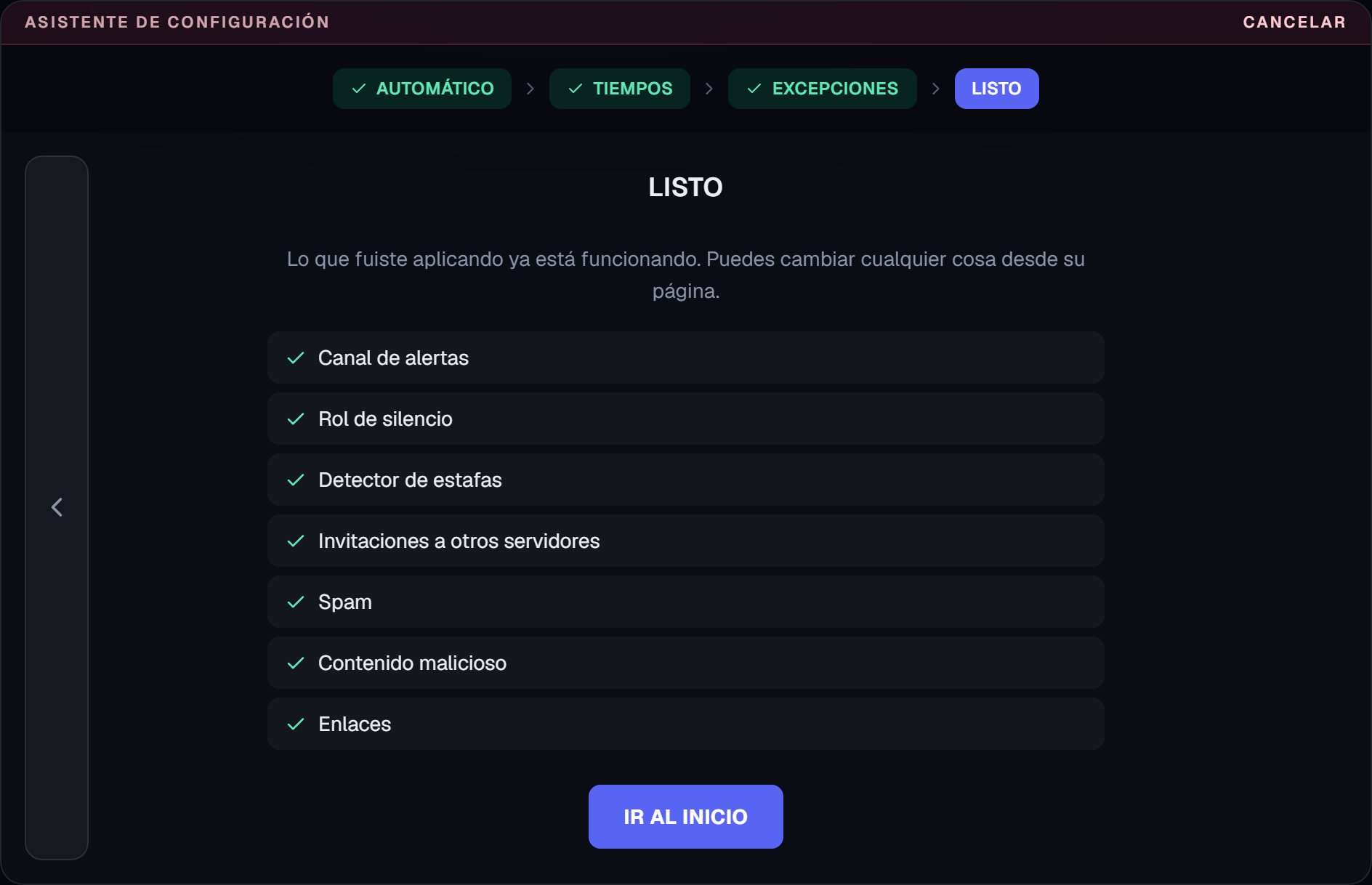
Final summary.
Step by step
If you press Continuar without starting the automatic setup, the assistant goes through each module. Each screen is saved when you move on with the arrow on the right, and the one on the left goes back. The bar at the top shows where you are and lets you return to screens you have already seen.Alerts
Choose where the detector’s and AutoMod’s notices go. You can create#nextgen-alertas, a private channel that administrators and the bot can see, or use one you already have. If you want your team to see it, give them access from the channel’s permissions.
Here you also decide whether the bot creates the @silenciado role.
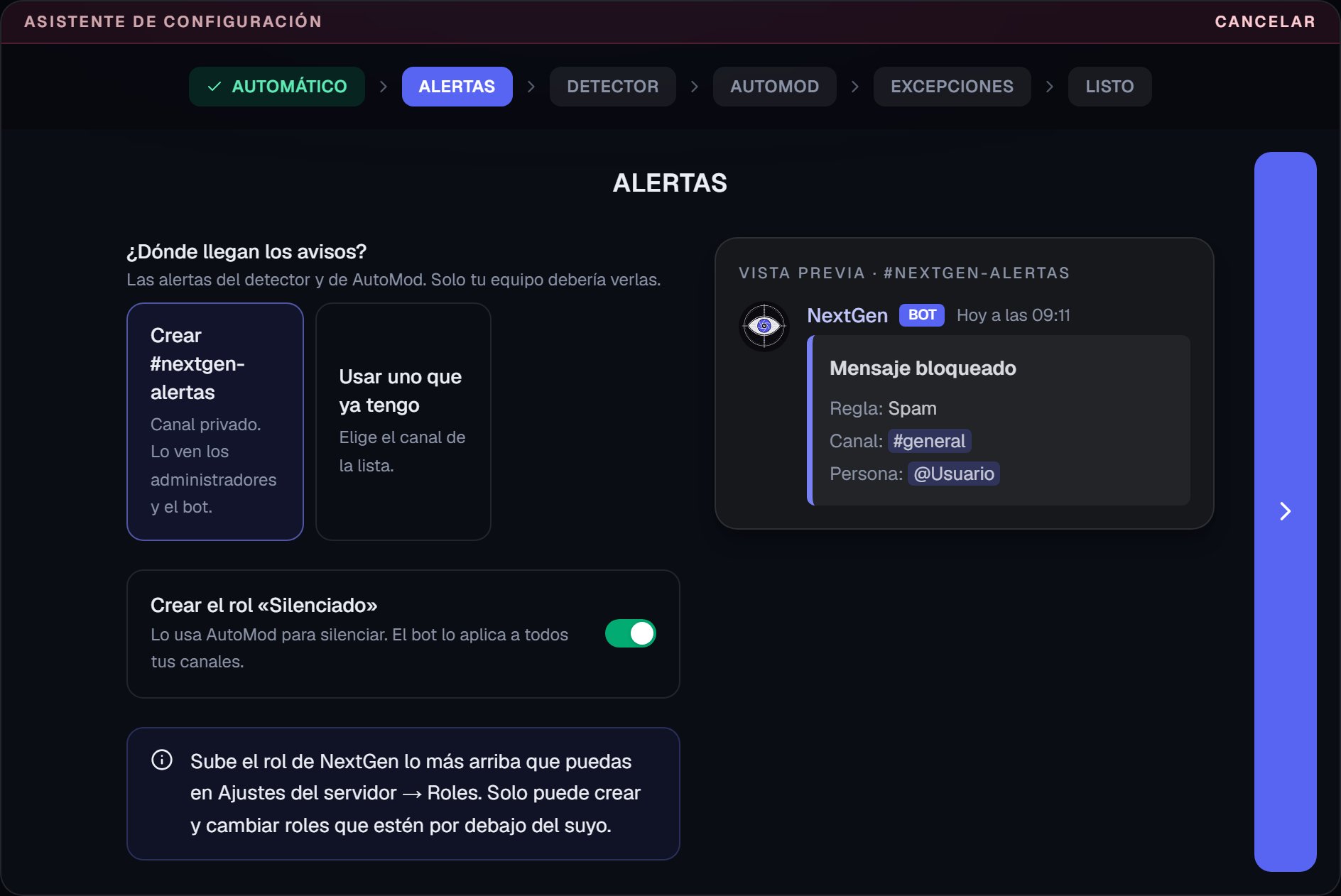
Alerts screen, with the preview of the notice your team receives.
Scam detector
Turn the detector on or off and choose its sensitivity.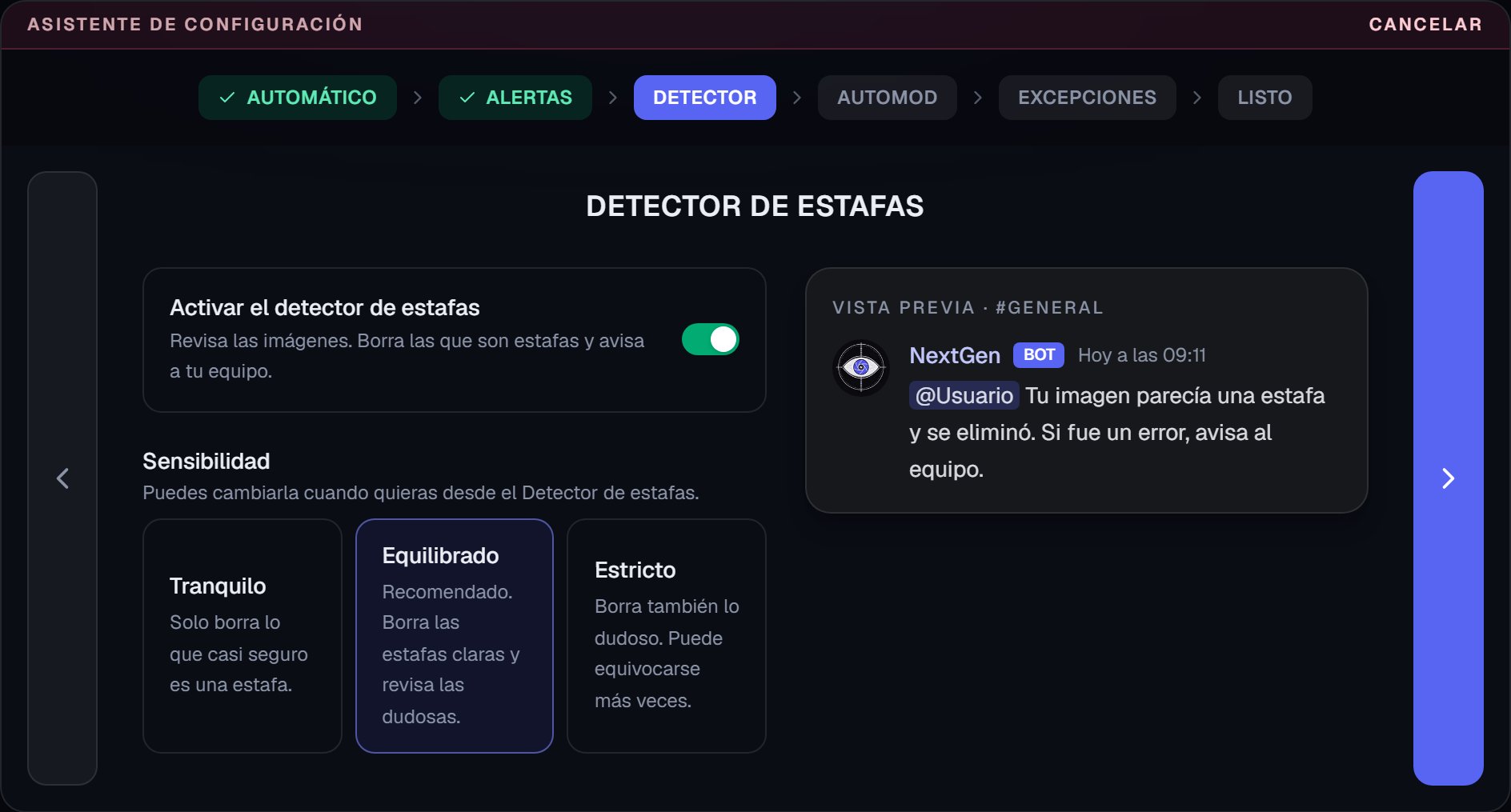
Scam detector screen.
Spam
Turn the anti-spam on or off, choose when something counts as spam and how long the mute lasts.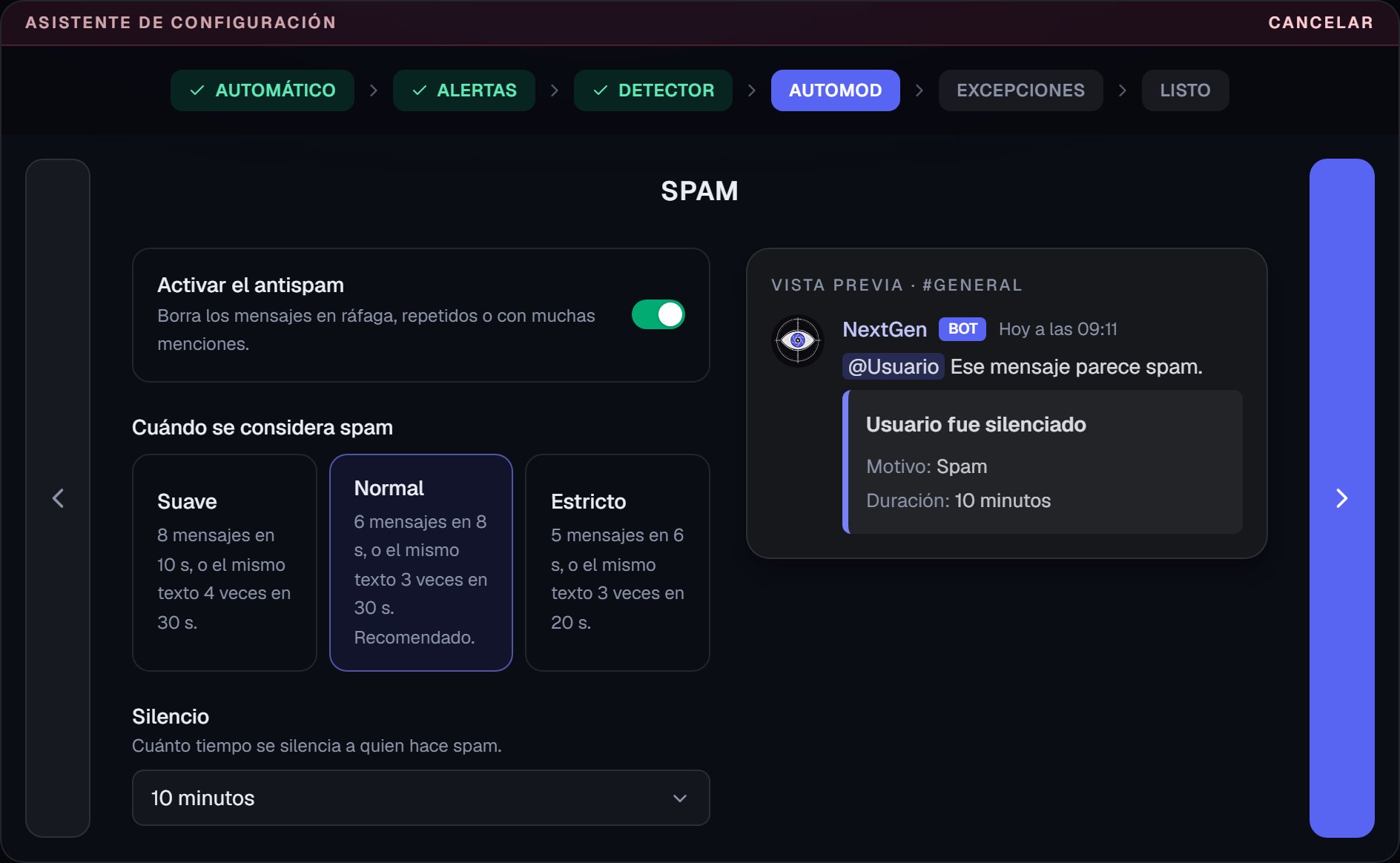
Spam screen, with the mute preview.
Invites and links
There are two switches.- Delete invites to other servers. Removes the invites that other communities leave in your channels.
- Block all links. Deletes any link to a web page. When you turn it on, the list of allowed links appears, and those always pass even though links are blocked.
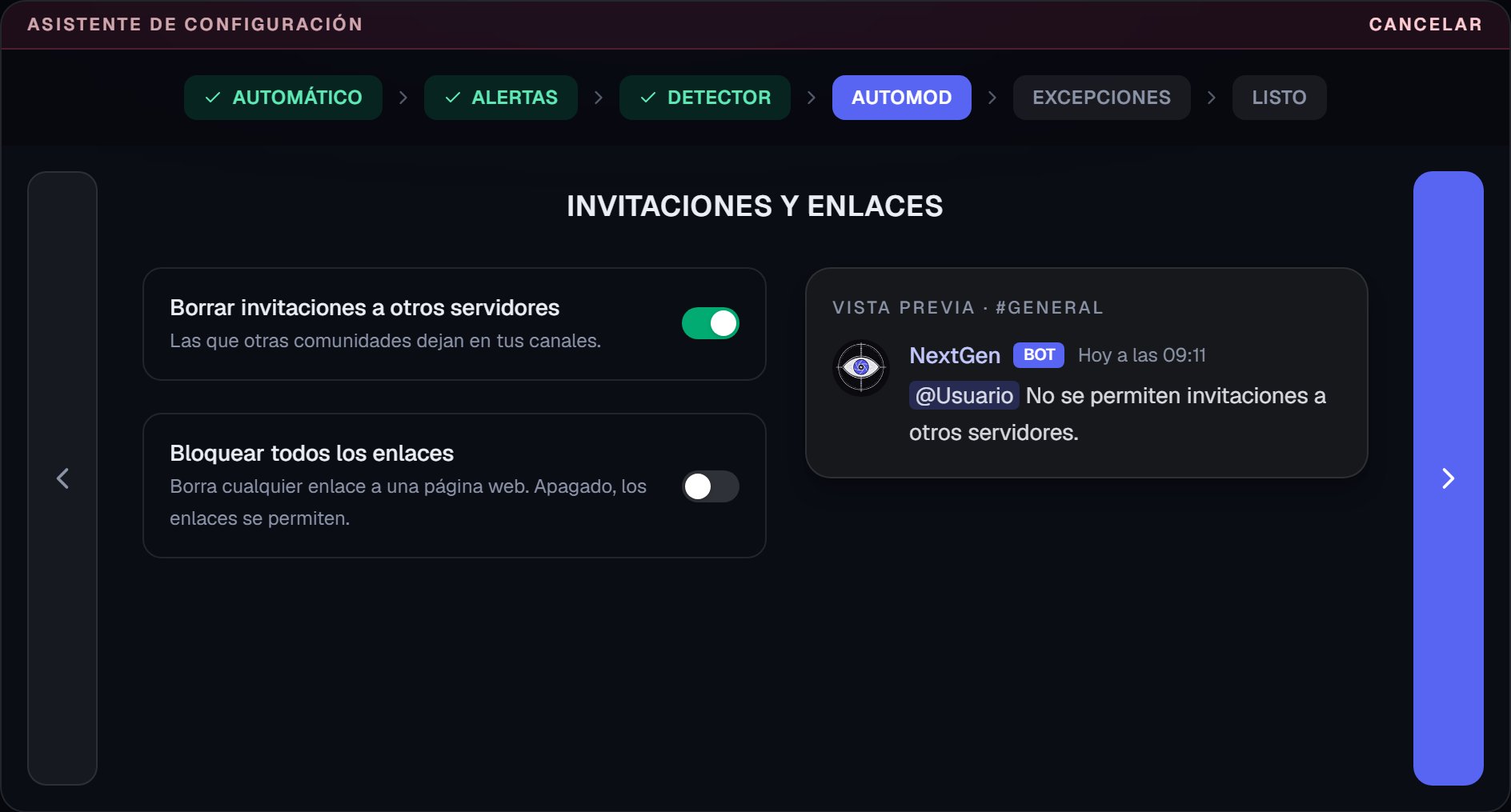
Invites and links screen.
Malicious content
Turn on or off the rule that deletes known scams, links that steal your IP and fake gifts, and choose how long the mute lasts.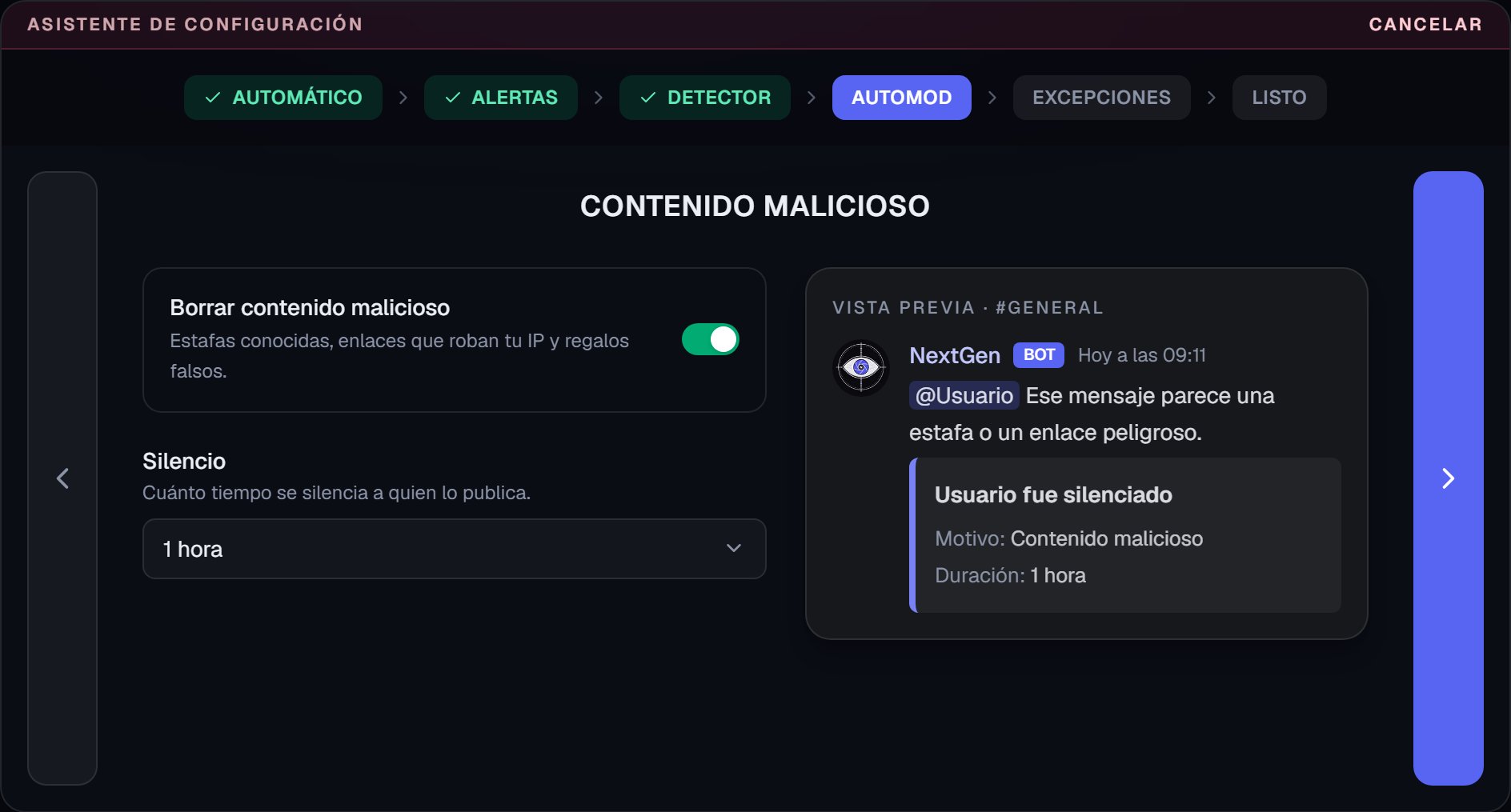
Malicious content screen.
Then come Exceptions, explained above, and Done.
How it works
- It saves as you go. What you change on a screen is applied when you press the arrow on the right. If you cancel, what was already applied stays.
- A switch turned off leaves the rule off. You can turn it on later from AutoMod.
- What you change shows in the other panels. The rules and the detector are then read and edited in AutoMod and in Scam detector, with the same values.
- You can open it again whenever you want to change something.
- The messages are the default ones. The preview uses the bot’s default texts. To change them, go to Messages.